Delegate your voting power
Delegation assigns your voting power to another wallet, which then votes with it on Snapshot. This guide shows how to read the Voting power tab, delegate to an address or ENS name, see what changes, and later reassign or remove the delegation.
The $WLFI Governance Participation Incentive Program proposal states: "Delegated votes do not count toward the governance participation requirements of the Program; tokenholders must vote directly to satisfy participation requirements." Delegating never moves your $WLFI. Votes you have already cast still count, but your delegate’s votes do not count towards your claim. If others delegate voting power to you, you can still vote using that incoming power even while your own power is delegated. Each proposal you personally vote on after opening your staking position counts once toward your claim. If your votes already meet the requirement, delegating does not stop you from claiming. The requirement goes up by one vote every full 90 days your position remains open. You can remove or reassign the delegation at any time.
Prerequisites
Before you begin, ensure you have:
A connected wallet holding $WLFI, whether in the wallet, staked or as locked tokens
ETH in your wallet for gas fees
The address or ENS name of the wallet you want to delegate to
Step 1: Open the Voting power tab
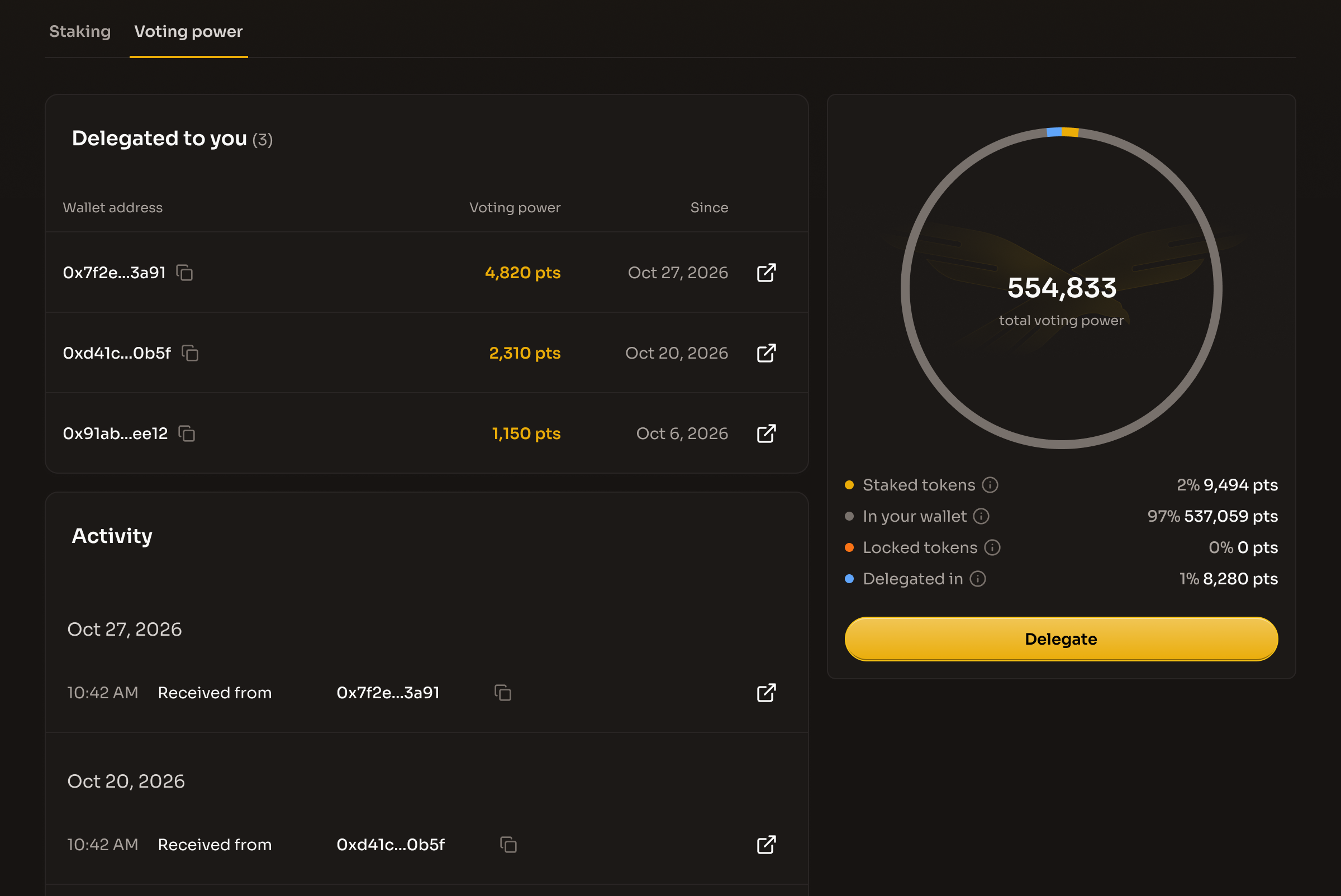
Click Voting power at the top of the staking page. The ring on the right shows your total voting power in the center: how much your vote counts right now, in points (pts). Every $WLFI you hold counts one point, whether it is in your wallet, staked or locked, so staking does not change the total. It is the sum of the four rows below the ring, and it is not affected by the Crypto/USD switch:
Staked tokens: "Staked $WLFI counts the same as $WLFI in your wallet." The voting power from the $WLFI in your staking position.
In your wallet: "Wallet $WLFI counts the same as staked $WLFI." The voting power from the unlocked $WLFI in your wallet that is not staked.
Locked tokens: "Early supporter $WLFI that has not unlocked yet, counted automatically." The tooltip also shows your locked balance. Locked tokens can't be staked, but they still count when you vote.
Delegated in: "Voting power other holders have given you to vote with." The total of the wallets listed in the Delegated to you card.
Before you connect a wallet, the ring shows only Staked and Available to stake, with a "Connect wallet" button.
Under the ring, Delegate opens the delegation dialog. It is disabled if you have no voting power of your own. The Delegated to you card lists the wallets that have delegated their voting power to you, with the number of wallets in its title and Wallet address, Voting power and Since for each, plus a link to the delegation transaction on the explorer. The address column shows the ENS name where there is one, with the shortened address in grey under it, or the shortened address alone; hovering or tapping it shows the full address; on desktop a copy icon beside it copies the address, and on a phone the address sheet offers Copy address; if there are none, it reads "No one has delegated to you yet." The Activity card lists your votes and delegation changes, newest first, with entries such as "Voted", "Delegated to", "Undelegated", "Received from" and "Withdrawn by".

Step 2: Delegate
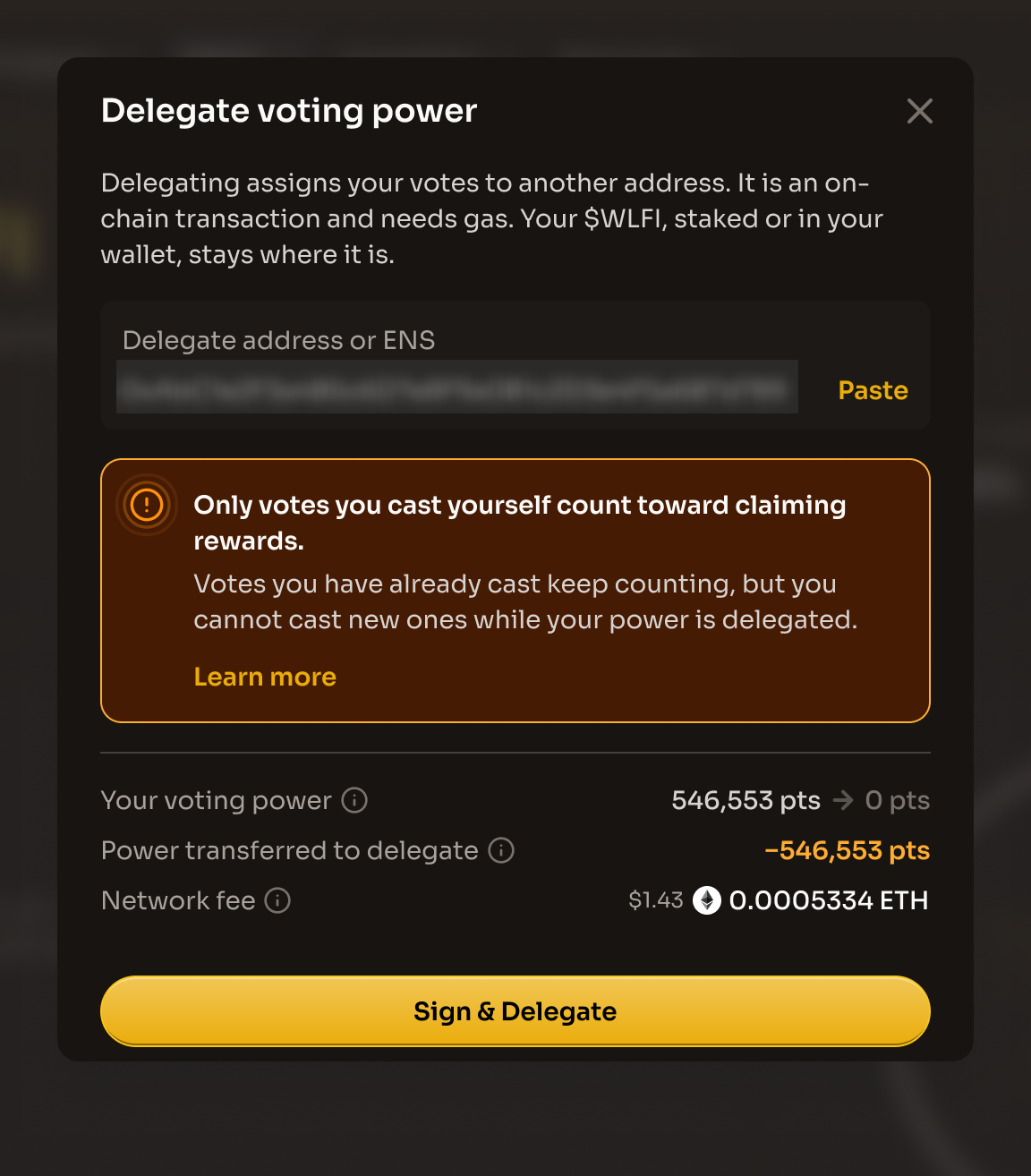
Click Delegate. The "Delegate voting power" dialog reads: "Delegating assigns your votes to another address. It is an on-chain transaction and needs gas. Your $WLFI, staked or in your wallet, stays where it is." Enter an address or ENS name in the "Delegate address or ENS" field, or click "Paste". It can't be your own wallet or the zero address, and an ENS name must resolve to an address.
A warning reminds you: "Only votes you cast yourself count toward claiming rewards." Votes cast after opening your staking position keep counting if you later delegate. Your delegate’s votes do not count for you. You can still vote using any power delegated to you by others; if you have none, remove your delegation to vote directly again. "Learn more" opens these docs. Once the address resolves, the dialog shows:
Your voting power: "Your voting power now and after you delegate. Power delegated to you stays with you." Your total voting power now, then what stays with you once you delegate: only the power other holders have delegated to you. If no one delegates to you, it reads 0 pts.
Power transferred to delegate: "Your own voting power from staked, wallet and locked $WLFI. Your delegate votes with it until you remove or reassign the delegation." No tokens move, only the right to vote with them. The row only shows if you have voting power of your own.
Network fee: "An estimate of the Ethereum network fee. Your wallet shows the exact amount before you confirm."
Click "Sign & Delegate" and confirm the transaction in your wallet, or click "Cancel" to close the dialog. While it is pending, the dialog shows "Waiting for confirmation". When it is confirmed, the dialog shows "Transaction complete!" and "Voting power delegated to [delegate]".

Step 3: See what changes
After delegating:
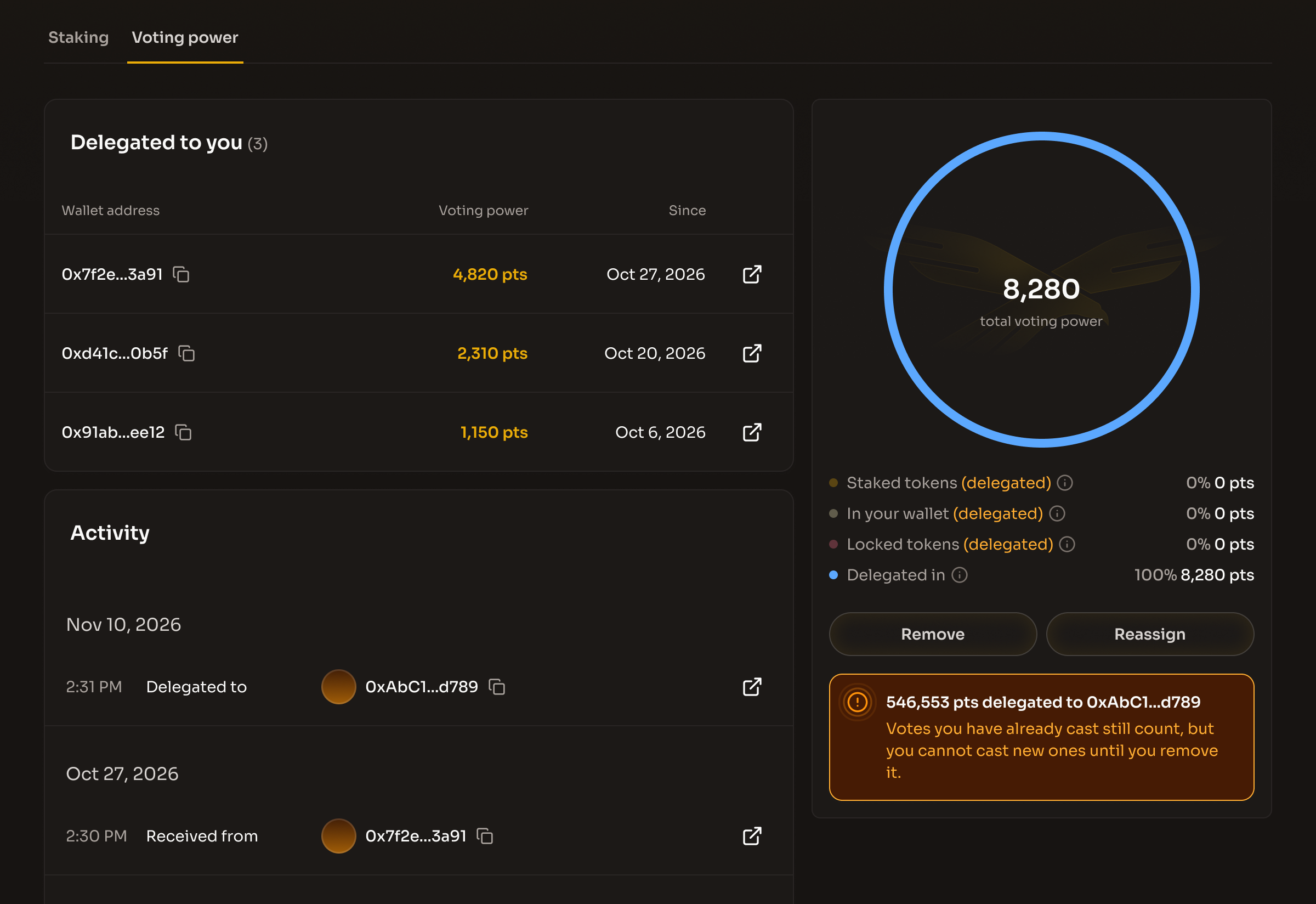
The center of the ring shows only the power other holders have delegated to you, because your own power now counts toward your delegate's votes. If no one delegates to you, it reads 0
Staked tokens, In your wallet and Locked tokens are marked (delegated): that power now counts toward your delegate's votes instead of yours. Your $WLFI stays where it is
Remove and Reassign replace Delegate
A warning box under them reads "[amount] pts delegated to [delegate]". The amount is the voting power of your own staked, wallet and locked $WLFI. If you have a staking position, the box also explains that your earlier qualifying votes still count. You can cast further votes using incoming delegated power; if you have none, remove your delegation to vote directly again.
If you have a position and still need votes, the votes card on the Staking tab names your delegate and shows "Remove delegation" in place of "Vote on Snapshot". The stake and add dialogs show a delegation warning
The Activity card records a "Delegated to" entry with the delegate's address and a link to the transaction. A reassign is recorded the same way

Step 4: Reassign the delegation
Click Reassign. The "Reassign delegation" dialog reads: "Enter a new address to move your delegation. This is an on-chain transaction and needs gas." Enter the new address or ENS name in the "New delegate address or ENS" field. If you enter your current delegate, the field shows "That is your current delegate. Enter a different address to reassign." and the button reads "Enter a different address". Once the new address resolves, the dialog shows:
Delegate: "Who votes with your power now, and who will after you reassign." Your current delegate, an arrow, then the new address or ENS name. Long addresses are shortened.
Power moving to new delegate: "Your own voting power, which moves to the new delegate in one transaction." Power delegated to you is not included and stays with you. No tokens move.
Network fee: "An estimate of the Ethereum network fee. Your wallet shows the exact amount before you confirm."
Click "Sign & Reassign" and confirm the transaction in your wallet, or click "Cancel". When it is confirmed, the dialog shows "Transaction complete!" and "Delegation moved to [delegate]."
Step 5: Remove the delegation
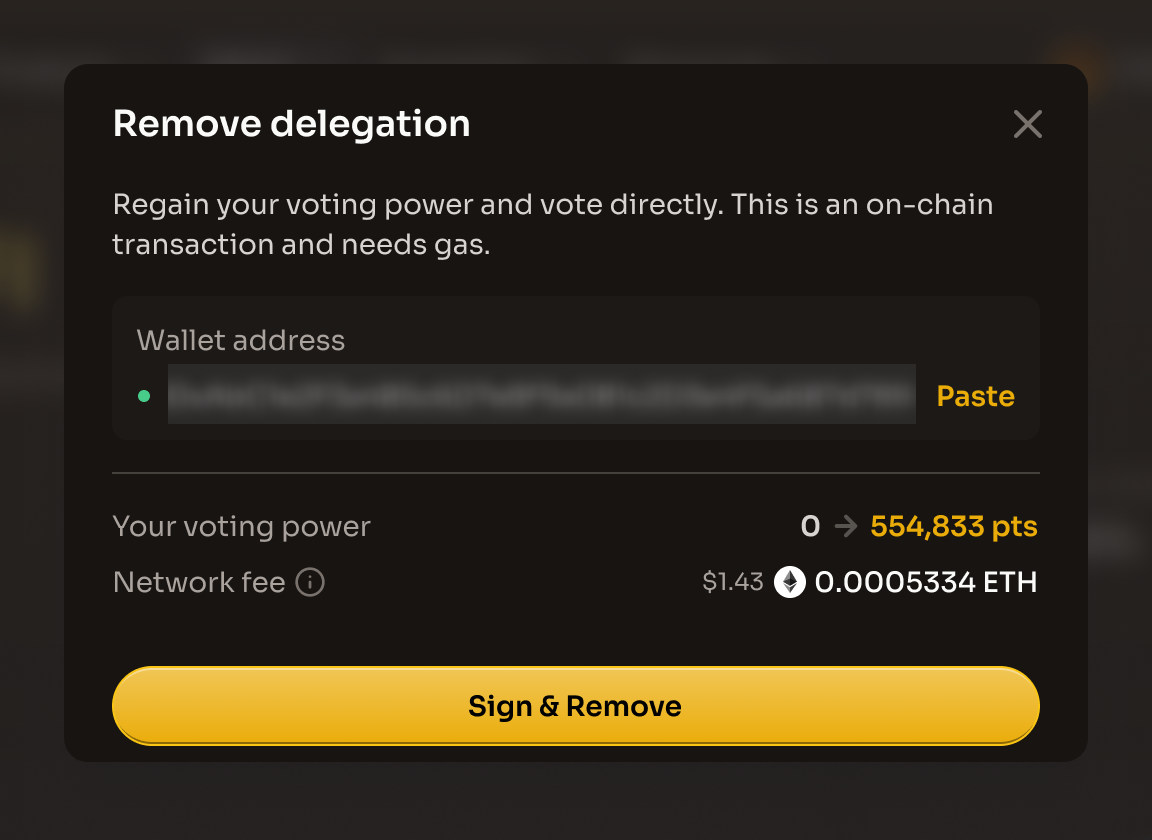
If you want your voting power back, click Remove on the Voting power tab, or "Remove delegation" on the votes card. The "Remove delegation" dialog reads: "Regain your voting power and vote directly. This is an on-chain transaction and needs gas." It shows your delegate in a read-only Wallet address field, then:
Your voting power: "Your voting power now and once it is back with you. Power delegated to you stays with you." Your total now, which is only the power delegated to you, and after removal, when the power from your own staked, wallet and locked $WLFI is added back
Network fee: "An estimate of the Ethereum network fee. Your wallet shows the exact amount before you confirm."
Click "Sign & Remove" and confirm the transaction in your wallet, or click "Cancel". When it is confirmed, the dialog shows "Transaction complete!" and "Delegation removed. You're now voting directly." You can cast direct votes again.

Your voting power is where you want it. If you stake, remember that only votes you cast yourself count toward claiming rewards.
What's next?
Vote to stay eligible - Cast direct votes from your own wallet
Stake $WLFI - Open a staking position
Additional resources
Last updated