arrow-up-from-lineWithdraw

Withdrawing assets from third-party protocols on WLFI Markets allows you to move your supplied funds back to your wallet. This guide walks you through the complete process of withdrawing assets from WLFI Markets.

Overview

When you withdraw assets using the WLFI Markets interface:

  • Receive Your Funds: Assets are transferred directly back to your connected wallet

  • Stop Earning on Withdrawn Amount: You'll no longer earn supply rewards on the withdrawn portion

  • Flexible Access: Withdraw your supplied assets at any time, subject to available liquidity

  • Preserve Remaining Position: Any assets you don't withdraw continue earning rewards

Prerequisites

Before withdrawing, ensure you have:

  • Assets currently supplied to WLFI Markets

  • ETH in your wallet to cover gas fees for the transaction

  • Your wallet connected to the Ethereum network

circle-exclamation

Step 1: Navigate to the dashboard

Visit the WLFI Markets applicationarrow-up-right and navigate to the Dashboard page. You can access it directly by clicking "Dashboard" in the top navigation bar.

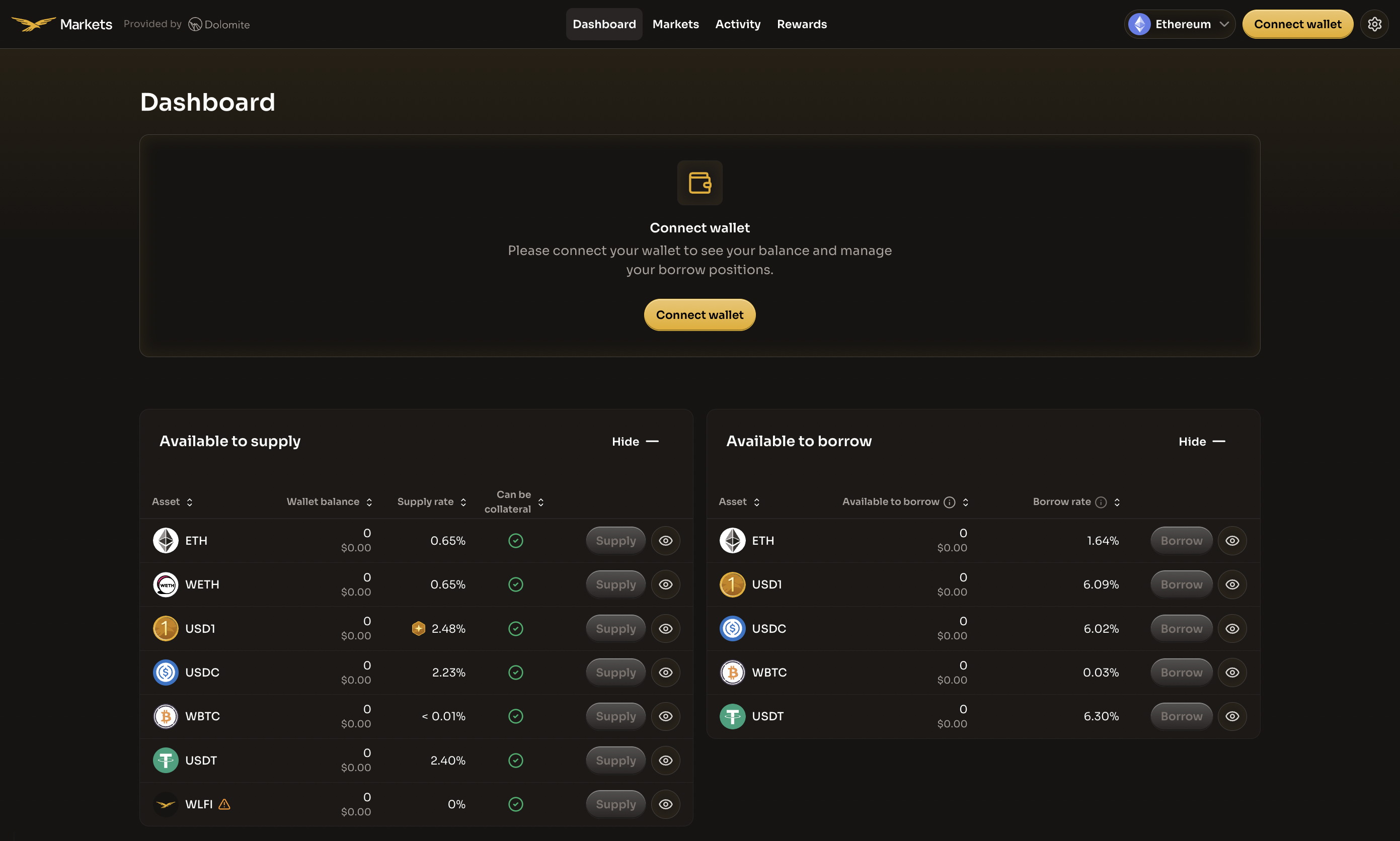
Before connecting your wallet, you'll see the available assets to supply and borrow, along with their current rates.

WLFI Markets Dashboard showing available assets and Connect wallet prompt
The WLFI Markets Dashboard displays all available assets with their supply and borrow rates
Step 2: Connect your wallet

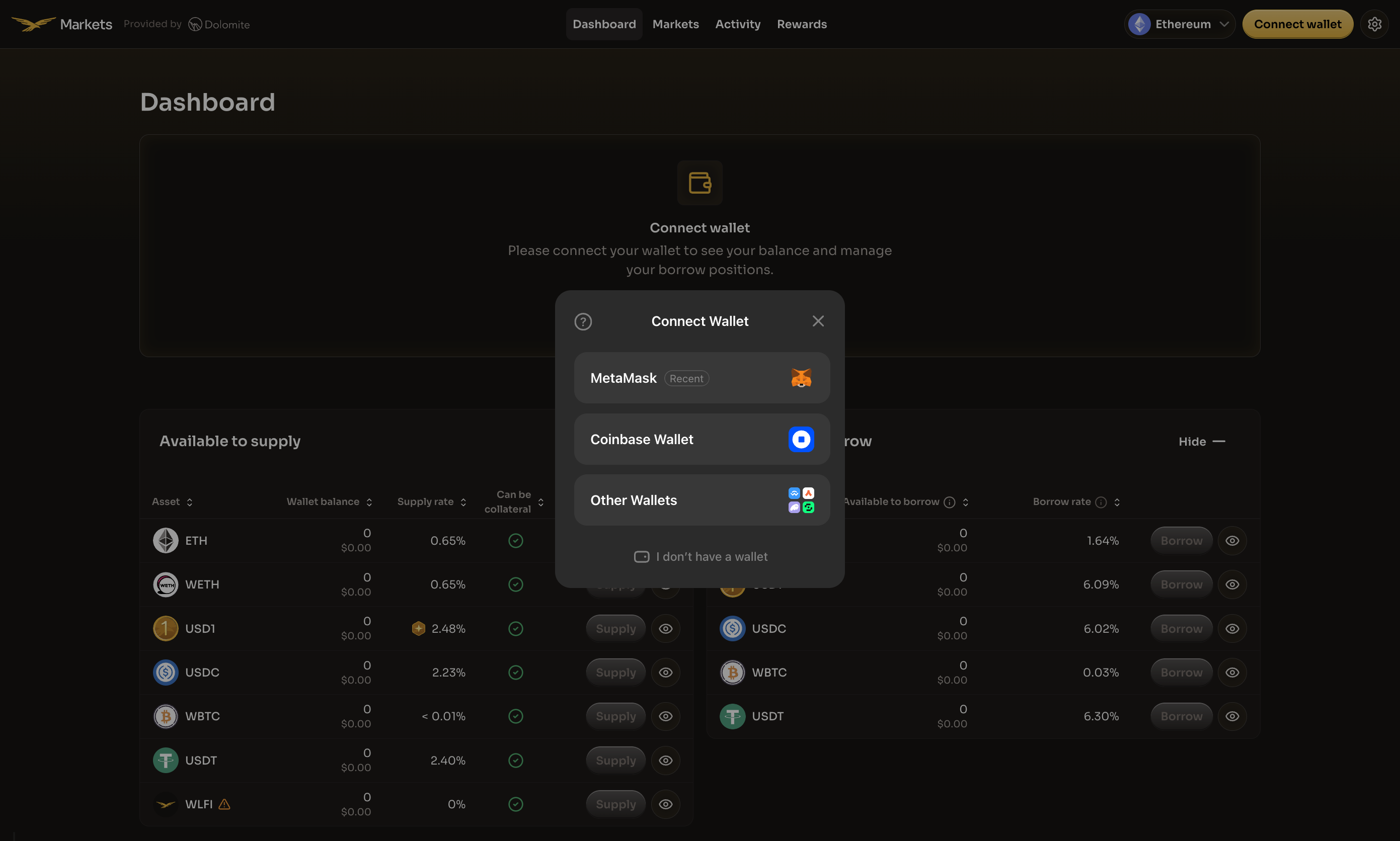
Click the Connect wallet button in the center of the page or in the top-right corner of the navigation bar. A modal will appear with a list of supported wallet providers.

Select your preferred wallet from the available options.

Wallet connection modal showing available wallet options
Choose your preferred wallet provider to connect to WLFI Markets
circle-exclamation

After selecting your wallet, complete the following connection steps:

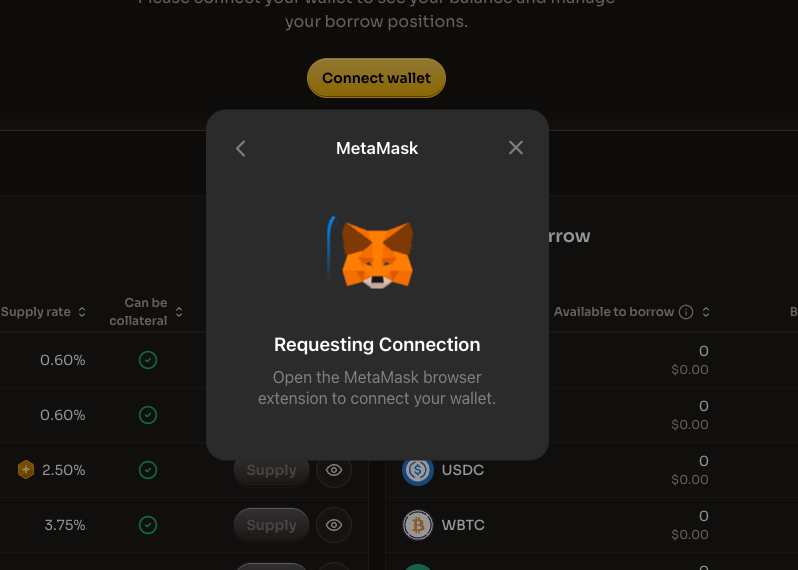
1. Wallet connection request

Your wallet will prompt you to connect. Open your wallet extension to approve the connection.

Wallet requesting connection approval
Open your wallet extension to approve the connection request
2. Sign in with Ethereum

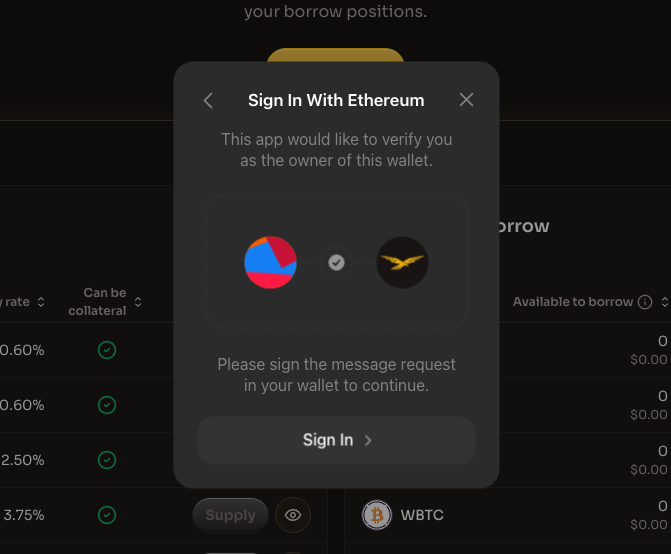
After connecting, you'll be asked to sign a message to verify wallet ownership. Click "Sign In" to proceed.

Sign In With Ethereum prompt
Sign the message to verify you own this wallet
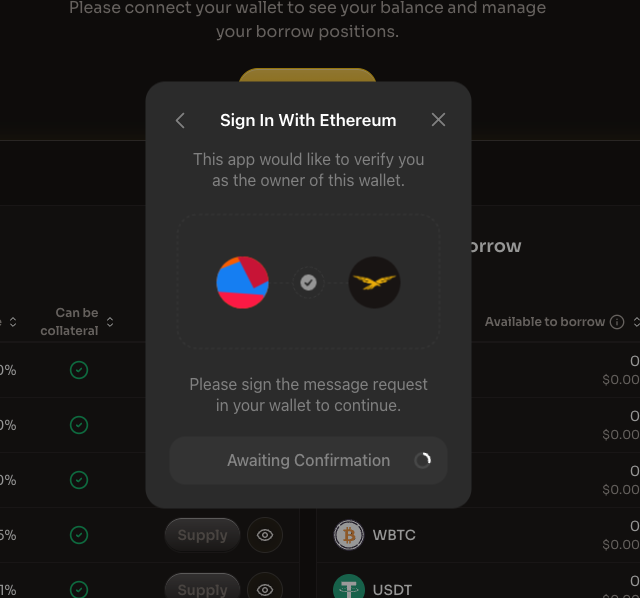
3. Awaiting confirmation

The application will wait for you to confirm the signature in your wallet.

Awaiting signature confirmation
Confirm the signature request in your wallet
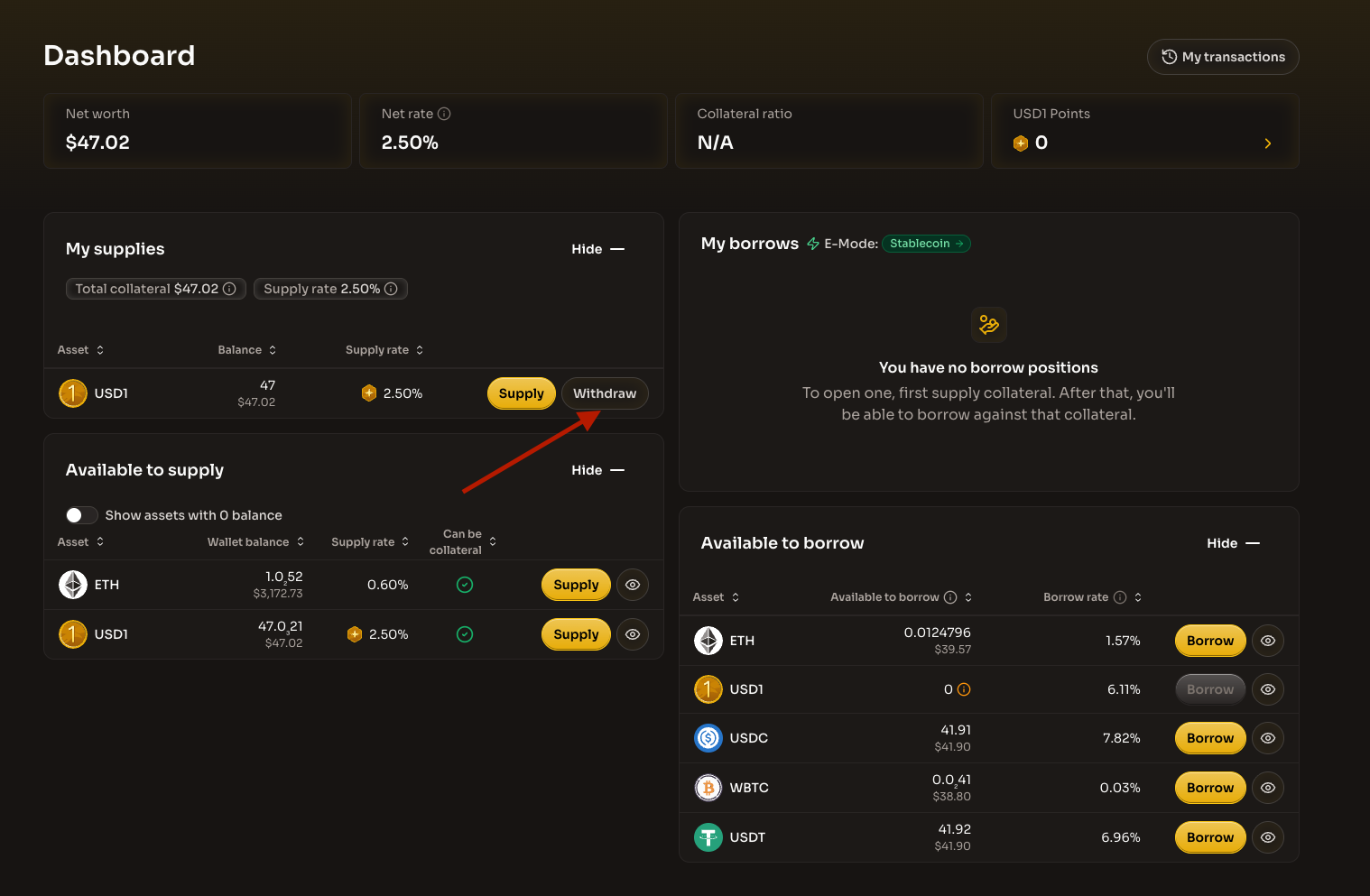
Once connected, the dashboard will update to show your personal balances and positions.

Step 3: Locate your supplied assets

Once your wallet is connected, the dashboard displays your current position. Navigate to the "My supplies" section to view your supplied assets.

This section shows:

Column
Description

Asset

The token name and icon

Balance

Your current supplied balance and USD value

Supply rate

The reward rate you'll earn

Actions

Supply more or withdraw funds

Additionally, you'll see summary information at the top:

  • Total collateral - The total USD value of your supplied collateral

  • Supply rate - The weighted average rate for all supplied assets, including incentives

Locate the asset you want to withdraw and click the Withdraw button next to it.

Dashboard showing My supplies section with USD1 supplied and Withdraw button highlighted
Click the Withdraw button next to the asset you want to remove from WLFI Markets
circle-exclamation

Step 4: Enter withdrawal amount and review

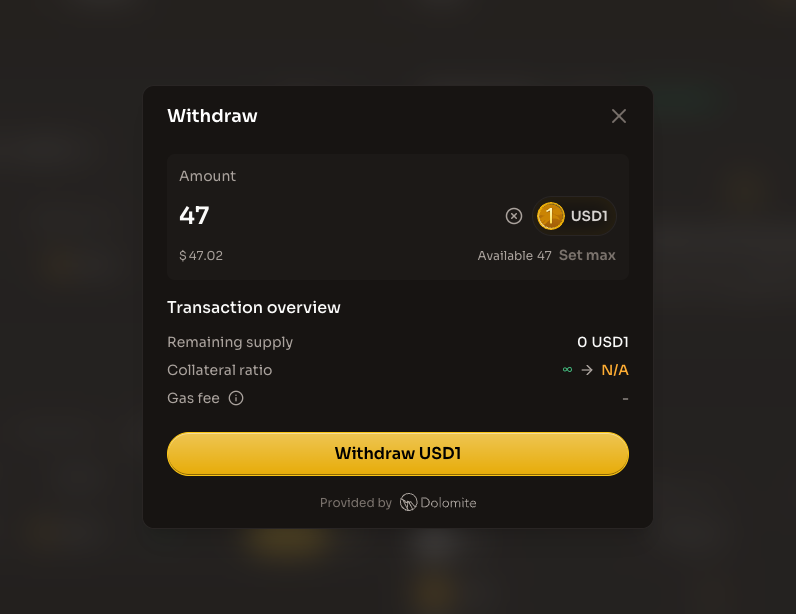
After clicking Withdraw, a modal appears where you can specify your withdrawal details:

Enter the withdrawal amount

  1. Enter the amount you want to withdraw in the input field

  2. The USD equivalent value is displayed below the amount

  3. Click "Set max" to withdraw your entire supplied balance of that asset

Review the transaction overview

Before confirming, carefully review the transaction details:

Field
Description

Remaining supply

The amount that will remain supplied after withdrawal

Collateral ratio

How your collateral ratio will change after the withdrawal

Gas fee

The estimated transaction cost in ETH and USD

Withdraw modal showing amount input, remaining supply, collateral ratio change, and gas fee
Review the withdrawal amount and transaction details before confirming
triangle-exclamation

Step 5: Complete the withdrawal

Once you've reviewed the transaction details:

  1. Click the "Withdraw [Asset]" button (e.g., "Withdraw USD1")

  2. Confirm the transaction in your connected wallet

  3. Wait for the transaction to be processed on the Ethereum network

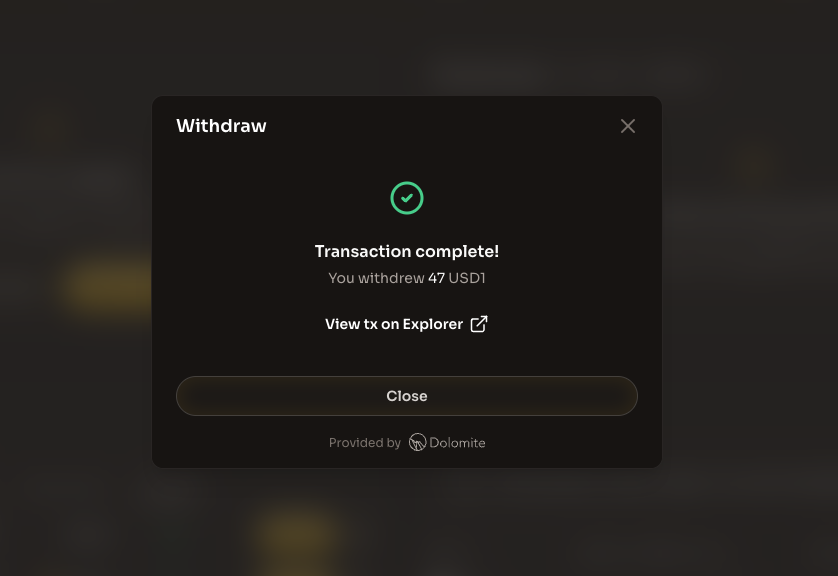
After the transaction is confirmed, you'll see a success message with the details of your withdrawal:

Transaction complete modal showing successful withdrawal of 47 USD1 with link to view on Explorer
Your withdrawal is complete! You can view the transaction on the blockchain explorer

Once complete:

  • The withdrawn assets will appear in your wallet

  • Your "My supplies" section will update to reflect the new balance

  • Your Net worth will adjust accordingly

  • If you withdrew all of an asset, it will be removed from "My supplies"

circle-check

Understanding withdrawal limitations

Utilization rate

In some cases, you may not be able to withdraw the full amount of your supplied assets. This occurs when the asset has high utilization, meaning a large portion of the supplied assets are actively being borrowed.

If you encounter this situation, you have several options:

  • Partial Withdrawal: Withdraw the available amount now and the remainder later

  • Wait for Repayments: As borrowers repay their loans, more liquidity becomes available

  • High Rate Benefit: During high utilization, supply rates are significantly elevated, so your remaining balance earns higher rewards

circle-info

When utilization is very high, the supply rate increases substantially. This incentivizes new supplies and encourages borrowers to repay, naturally rebalancing liquidity over time.

Collateral constraints

If you have active borrow positions, your withdrawable amount may be limited by your collateral requirements:

  • You cannot withdraw collateral that would cause your position to become undercollateralized

  • The maximum withdrawable amount is calculated based on your current borrow balance and liquidation threshold

  • Consider repaying some of your borrows first if you need to withdraw more collateral

What's next?

After withdrawing assets from WLFI Markets, you can:

  • Supply - Supply assets back to WLFI Markets to earn rewards

  • Borrow - Use remaining collateral to borrow other assets

  • Repay - Pay back borrowed assets to free up collateral

  • Activity - Track your transactions and position history

Additional resources

Last updated