arrow-down-to-lineSupply

Supplying assets to third-party protocols through WLFI Markets allows you to earn potential rewards and use your supplied assets as collateral for borrowing. This guide walks you through the complete process of supplying assets to WLFI Markets.

Overview

When you supply assets using the WLFI Markets interface, you:

  • Earn Potential Rewards: Potentially receive rewards on your supplied assets

  • Enable Borrowing: Use your supplied assets as collateral to borrow other assets

  • Earn USD1 Points: Accumulate points when supplying USD1

  • Flexible Access: Withdraw your supplied assets at any time, subject to available liquidity

Prerequisites

Before supplying, ensure you have:

  • A compatible Web3 EVM wallet (MetaMask, Phantom, Binance Wallet, OKX Wallet, or others)

  • Sufficient assets in your wallet to supply

  • ETH in your wallet to cover gas fees for the transaction

  • Your wallet connected to the Ethereum network

circle-info

If you don't have any assets to supply, you'll need to transfer compatible assets to your wallet first.

Step 1: Navigate to the dashboard

Visit the WLFI Markets applicationarrow-up-right and navigate to the Dashboard page. You can access it directly by clicking "Dashboard" in the top navigation bar.

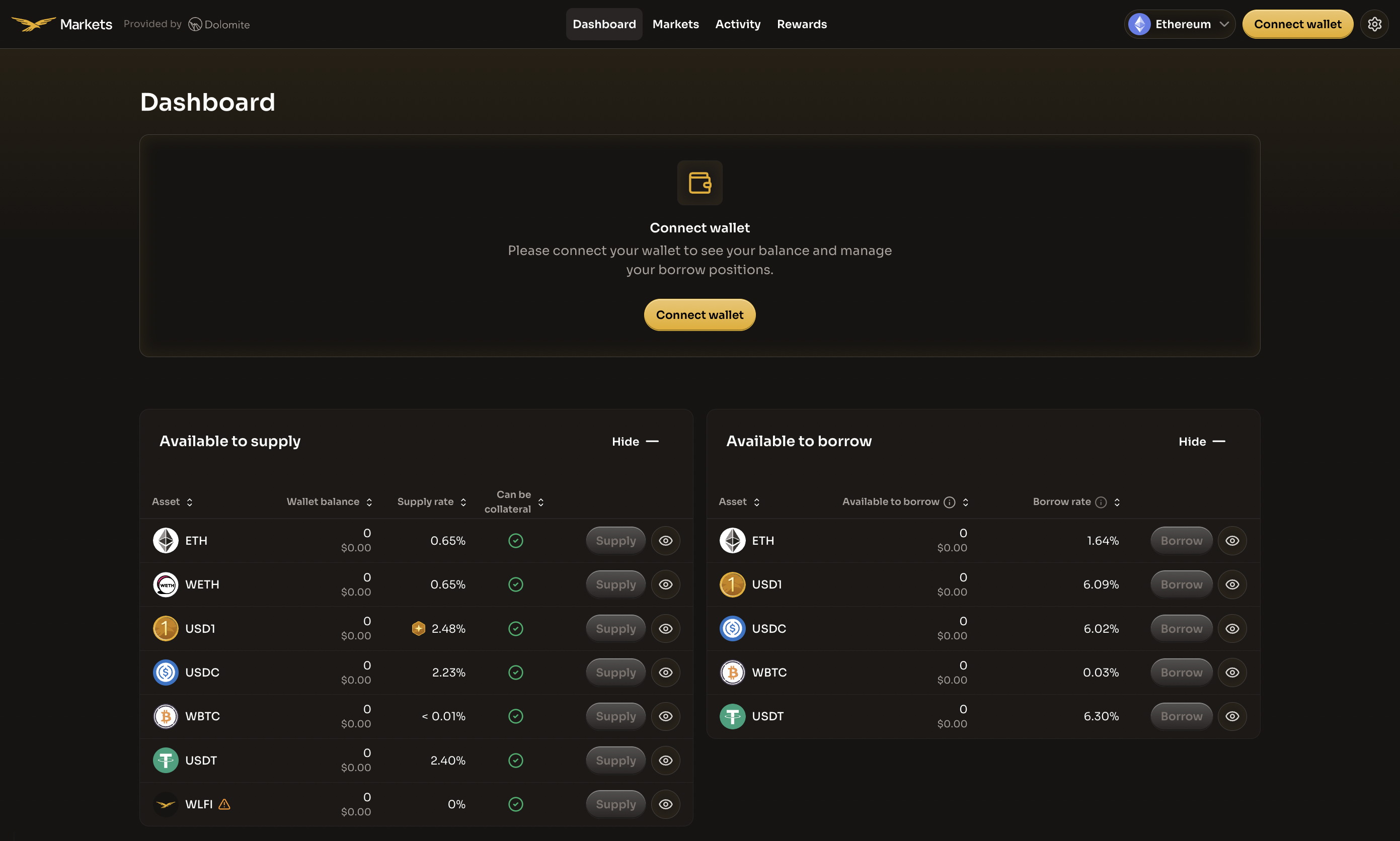
Before connecting your wallet, you'll see the available assets to supply and borrow, along with their current rates.

WLFI Markets Dashboard showing available assets and Connect wallet prompt
The WLFI Markets Dashboard displays all available assets with their supply and borrow rates
Step 2: Connect your wallet

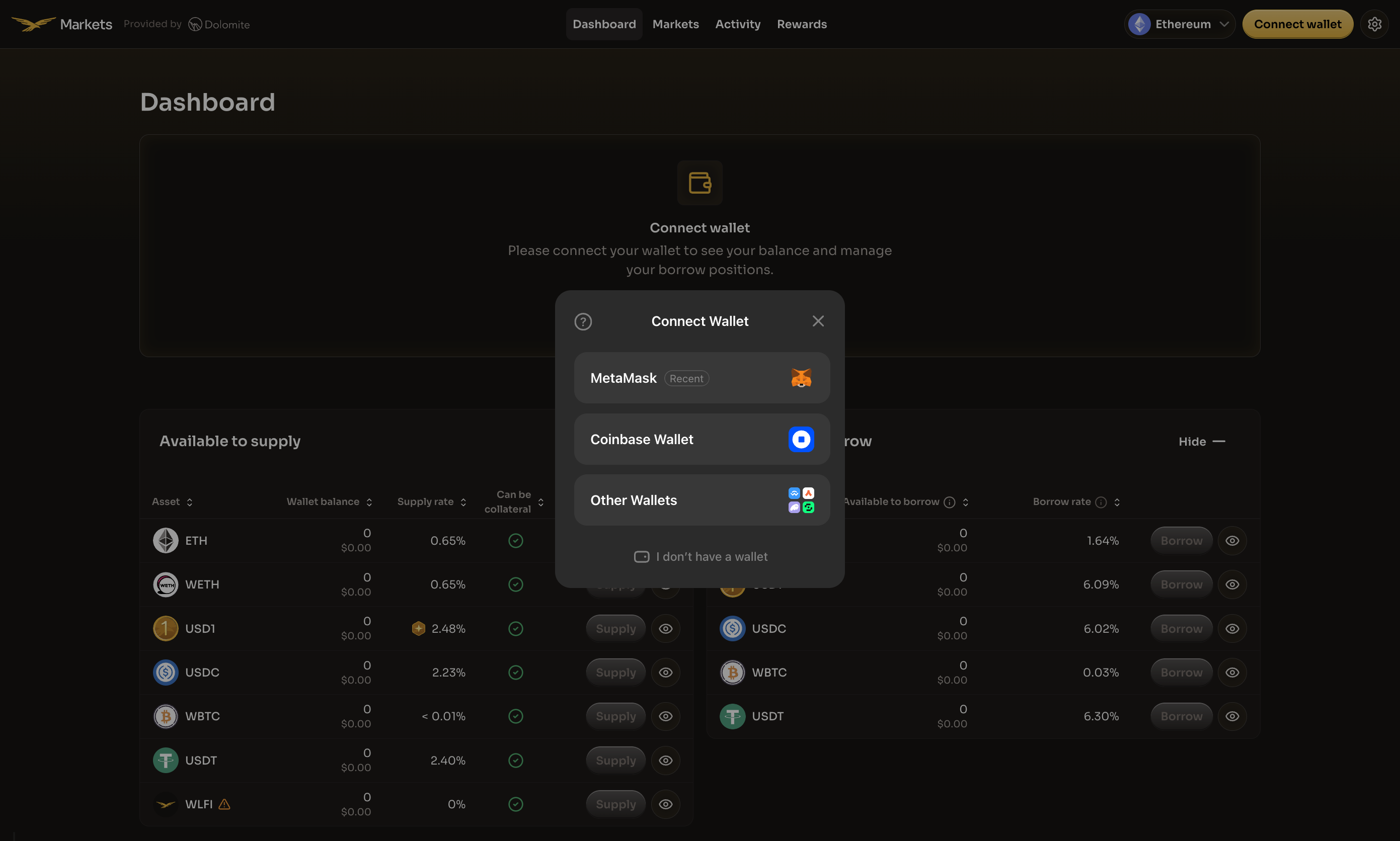
Click the Connect wallet button in the center of the page or in the top-right corner of the navigation bar. A modal will appear with a list of supported wallet providers.

Select your preferred wallet from the available options.

Wallet connection modal showing available wallet options
Choose your preferred wallet provider to connect to WLFI Markets
circle-info

If you don't have a wallet yet, click "I don't have a wallet" at the bottom of the modal for guidance on setting one up.

After selecting your wallet, complete the following connection steps:

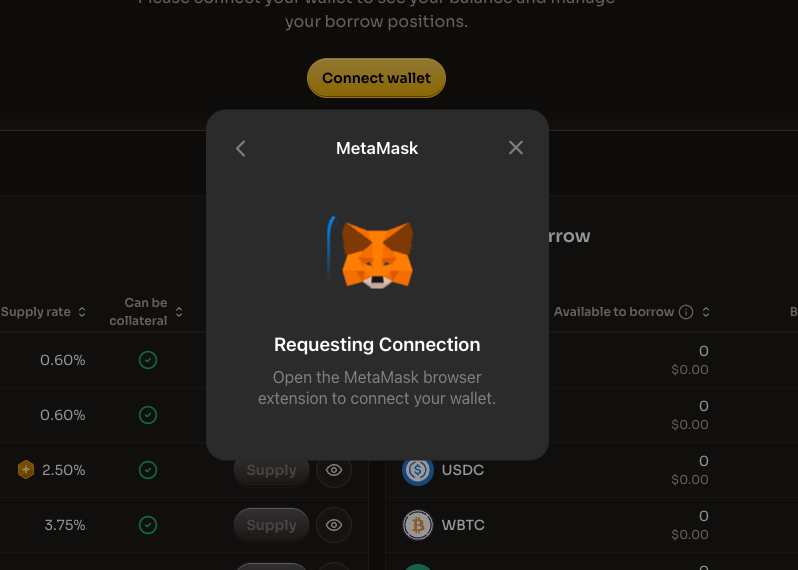
1. Wallet connection request

Your wallet will prompt you to connect. Open your wallet extension to approve the connection.

Wallet requesting connection approval
Open your wallet extension to approve the connection request
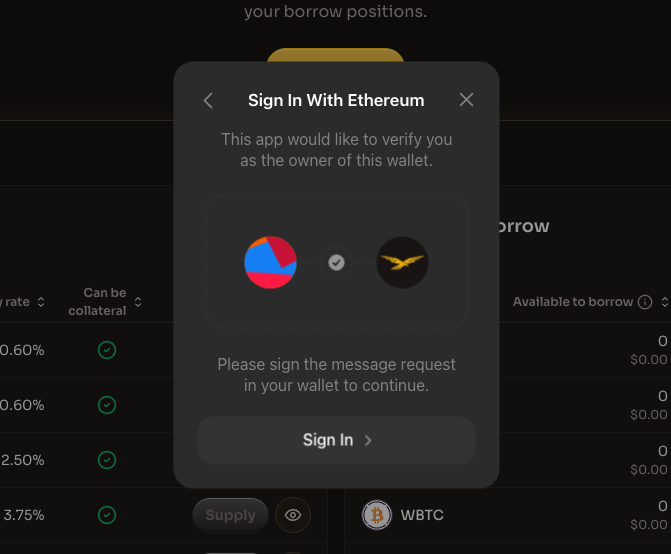
2. Sign in with Ethereum

After connecting, you'll be asked to sign a message to verify wallet ownership. Click "Sign In" to proceed.

Sign In With Ethereum prompt
Sign the message to verify you own this wallet
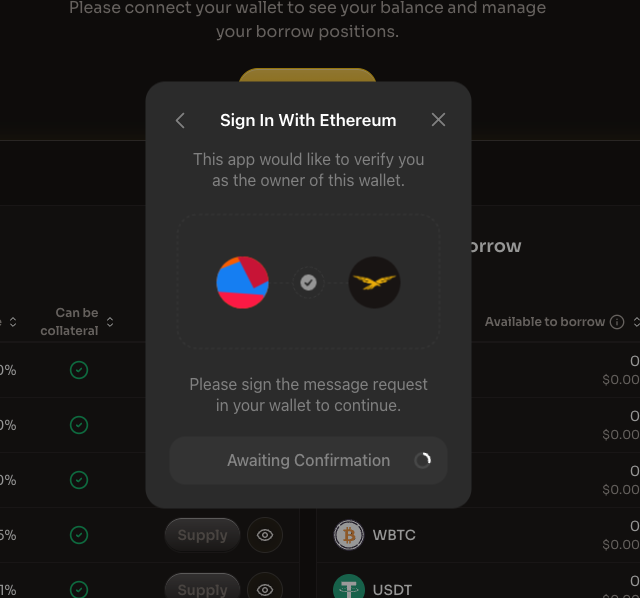
3. Awaiting confirmation

The application will wait for you to confirm the signature in your wallet.

Awaiting signature confirmation
Confirm the signature request in your wallet

Accept Terms of Service

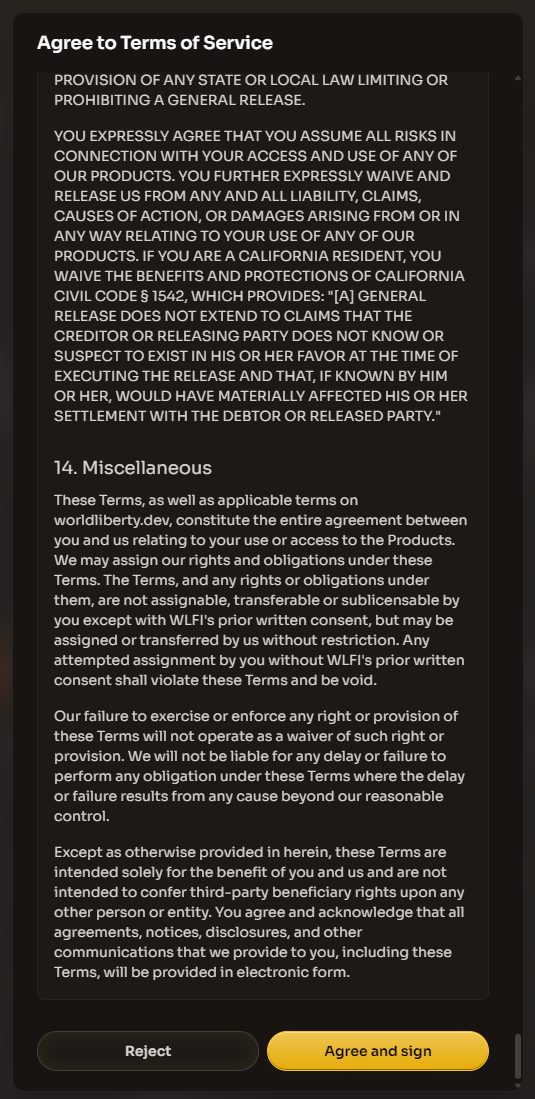
On your first visit or when the Terms of Service have been updated, you'll be prompted to read and accept the third-party Terms of Service. Scroll through the terms to review them fully.

Once you've read the terms, click the "Agree and sign" button. Your wallet will prompt you to sign a message confirming your acceptance.

Once connected and terms accepted, the dashboard will update to show your personal balances and positions.

Step 3: Select the asset to supply

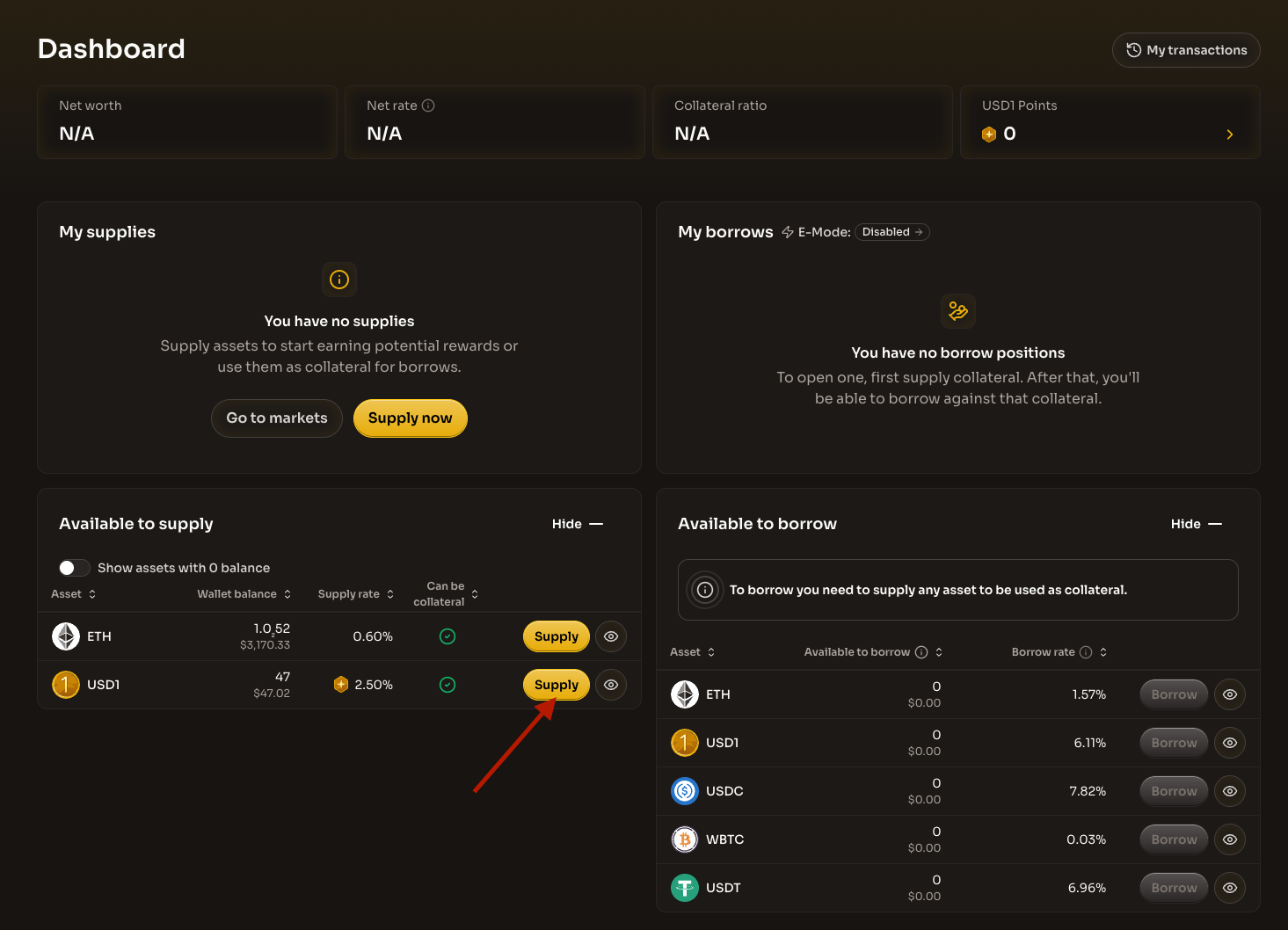
Once your wallet is connected, the dashboard displays your wallet balances for each asset in the "Available to supply" section.

Review the available assets and their details:

Column
Description

Asset

The token name and icon

Wallet balance

Your current wallet balance and USD value

Supply rate

The reward rate you'll earn

Can be collateral

Whether the asset can be used as collateral for borrowing

Locate the asset you want to supply and click the Supply button next to it.

Dashboard showing Available to supply section with Supply buttons for each asset
Click the Supply button next to the asset you want to supply
circle-exclamation

Step 4: Enter the amount and review the transaction

After clicking Supply, a modal appears where you can specify your supply details:

Enter the supply amount

  1. Enter the amount you want to supply in the input field

  2. The USD equivalent value is displayed below the amount

  3. Click "Set max" to supply your entire wallet balance of that asset

Review the transaction overview

Before confirming, review the transaction details:

Field
Description

Supply rate

The current rate you'll earn on this supply

Collateral ratio

How your collateral ratio will change after the supply

Gas fee

The estimated transaction cost in ETH and USD

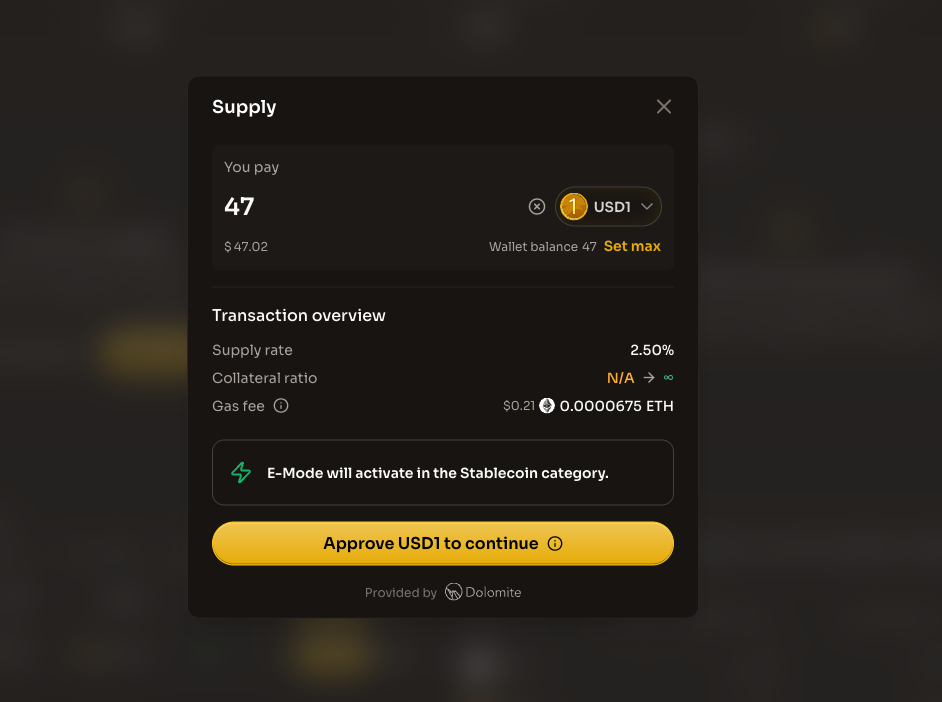
Token approval

For assets other than ETH, you'll need to approve the token spending for each supply. Click the "Approve [Asset] to continue" button and confirm the approval transaction in your wallet.

Supply modal showing the Approve USD1 to continue button
Approve token spending before your supply transaction
circle-info

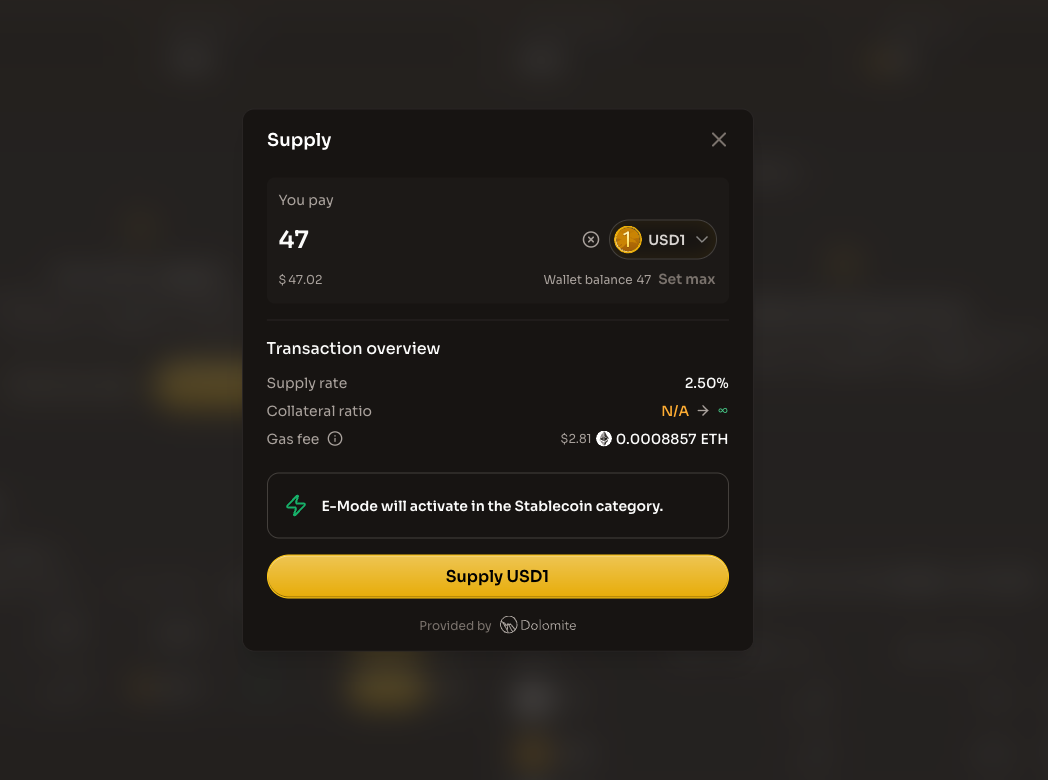
E-Mode Activation: When supplying stablecoins like USD1, E-Mode may automatically activate in the Stablecoin category. This enables higher borrowing power when borrowing other stablecoins. Learn more about E-Mode.

Step 5: Complete the supply

Once the token is approved, review the final transaction details and complete your supply:

  1. Click the "Supply [Asset]" button (e.g., "Supply USD1")

  2. Confirm the transaction in your connected wallet

  3. Wait for the transaction to be processed on the Ethereum network

Supply modal showing the Supply USD1 button to complete the supply
Click the Supply button to complete your supply
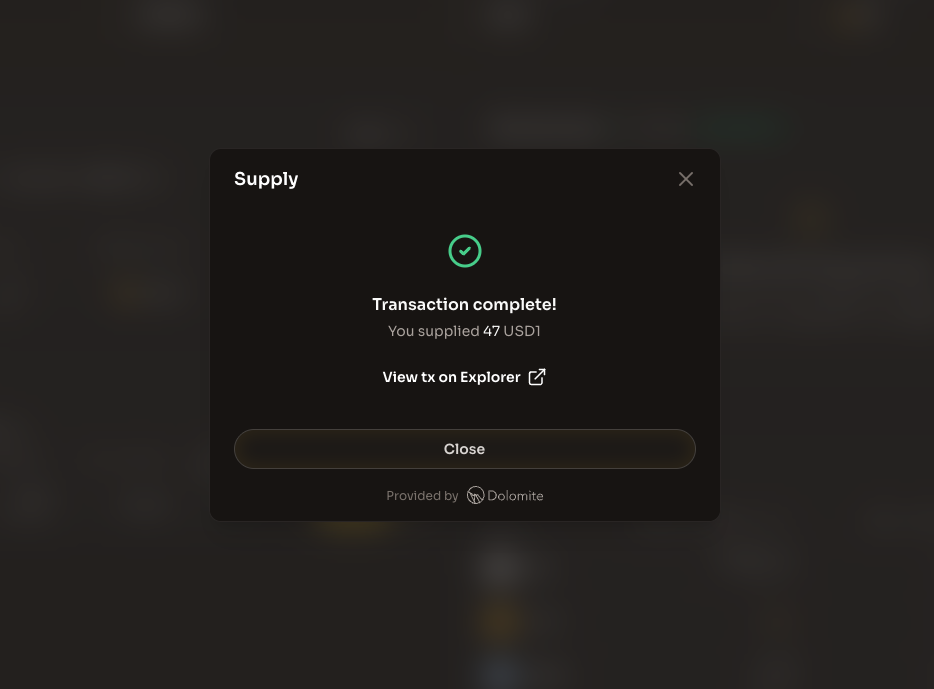
After the transaction is confirmed, you'll see a success message with the details of your supply:

Transaction complete modal showing successful supply of 47 USD1 with link to view on Explorer
Your supply is complete! You can view the transaction on the blockchain explorer

Once complete:

  • Your supplied asset will appear in the "My supplies" section on the dashboard

  • Your Net worth and Collateral ratio will update accordingly

  • You'll start earning supply rewards immediately

  • Your USD1 Points will begin accumulating (if applicable)

circle-check

Understanding your position

After supplying, the Dashboard displays your position details:

Metric
Description

Net worth

Total USD value of your supplied assets minus borrowed assets

Net rate

The combined effect of all supply and borrow positions on net worth, including incentives. It is possible to have a negative net rate if debt rate is higher than supply rate

Collateral ratio

Your collateral ratio and loan to value determine the assurance of your collateral. To avoid liquidations you can supply more collateral or repay borrow positions

USD1 Points

Points accumulated from supplying USD1

What's next?

Now that you've supplied assets to WLFI Markets, you can:

  • Borrow - Use your supplied collateral to borrow other assets

  • Withdraw - Remove your supplied assets when needed

  • Activity - Track your transactions and position history

  • Rewards - View your USD1 Points based on your engagement in the protocol

Additional resources

Last updated