clock-rotate-leftActivity

The Activity page displays all actions done by your wallet on WLFI Markets. The transaction history helps you track your supplies, withdrawals, borrows, repayments, and other activities across all your positions.

The Activity feature on WLFI Markets will display all completed actions you've taken, along with transaction-specific data and links to view them on the blockchain explorer.

Overview

The Activity page provides:

  • Complete Transaction History: View all your WLFI Markets transactions in one place

  • Transaction Filtering: Filter by transaction type (Supply, Borrow, Withdraw, Repay, Liquidation, Open Position) or by specific assets

  • Asset Search: Quickly find transactions involving specific tokens

  • Export Functionality: Download your transaction history as CSV or JSON files

  • Blockchain Explorer Links: Direct links to view each transaction on the blockchain explorer

  • Chronological Organization: Transactions grouped by date for easy navigation

The Activity feature can be found in the navigation panel at the top of the WLFI Markets app. Click on "Activity" to view your transaction history.

WLFI Markets Activity page showing transaction history
The Activity page displays all your WLFI Markets transactions organized by date

Understanding transaction types

The Activity page tracks several types of transactions:

Transaction Type
Description

Supply

Supplies of assets into third-party protocols on WLFI Markets to earn rewards and use as collateral

Borrow

Borrowing assets against your supplied collateral

Withdraw

Removing supplied assets from WLFI Markets back to your wallet

Repay

Paying back borrowed assets to reduce your debt

Liquidation

Liquidations that occurred on your positions (if any)

Open position

Initial creation of a borrow position

Filtering transactions

Filter by transaction type

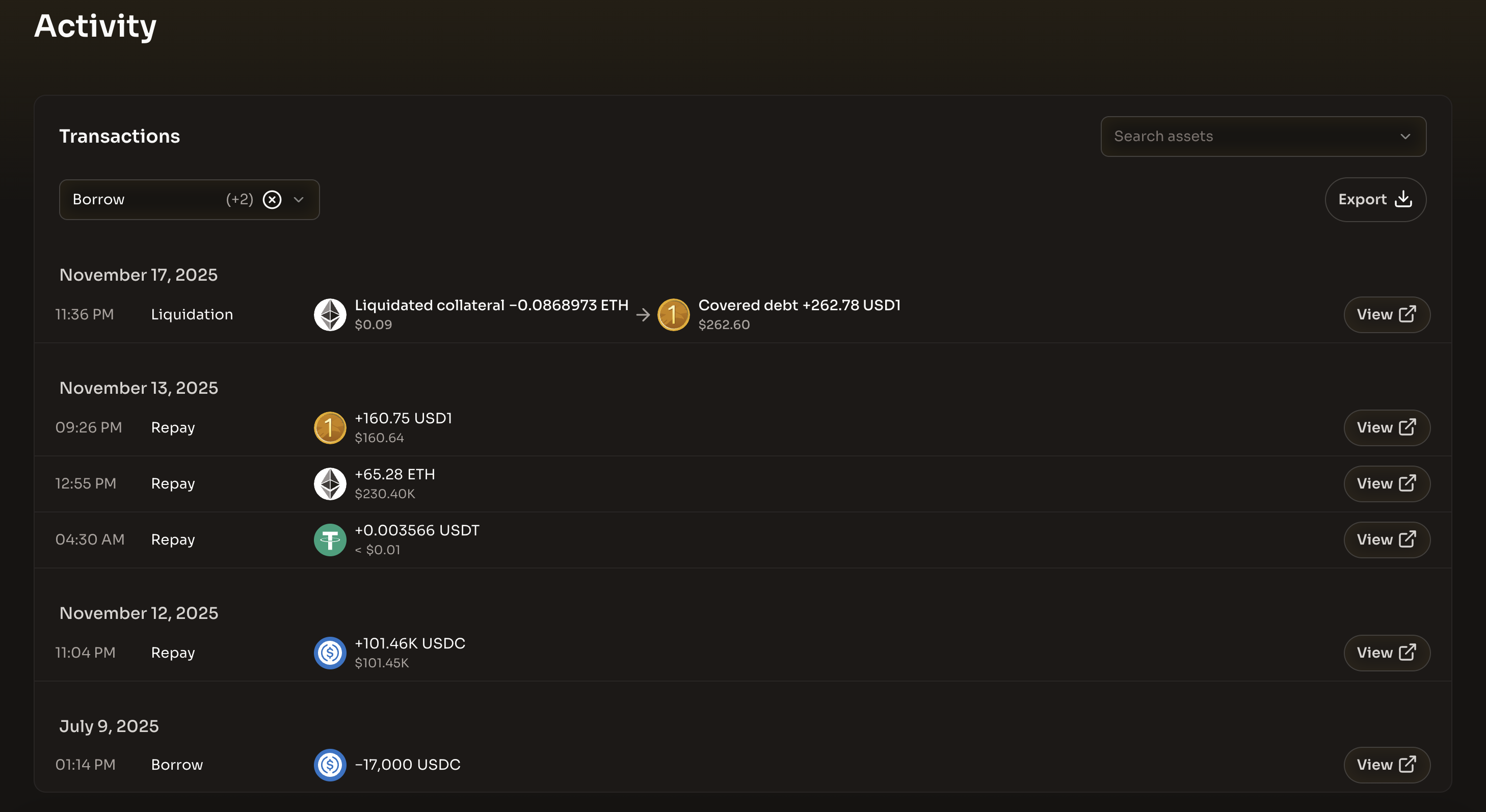
You can filter transactions by type using the "Transaction type(s)" dropdown at the top of the page:

  1. Click on the "Transaction type(s)" dropdown

  2. Select one or more transaction types you want to view (e.g., "Supply", "Borrow", "Repay")

  3. The list will update to show only transactions matching your selected types

  4. Click the X button next to a selected filter to remove it, or clear all filters to see all transactions

Activity page showing transaction type filter dropdown
Filter transactions by type using the dropdown menu
Search by asset

You can search for transactions involving specific assets:

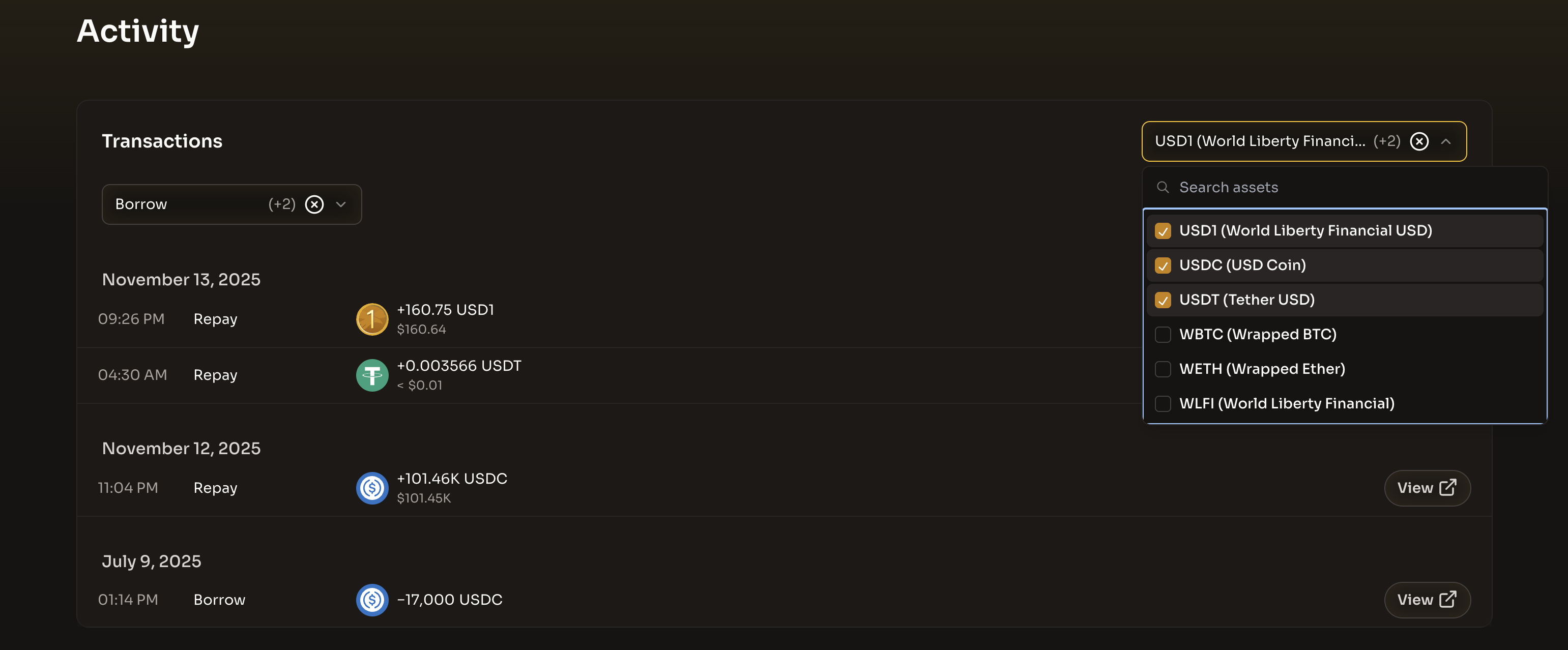
  1. Click on the "Search assets" field at the top of the page

  2. Type the name or symbol of the asset you're looking for (e.g., "USD1", "ETH", "USDC")

  3. Select one or more assets from the dropdown

  4. The transaction list will update to show only transactions involving your selected assets

  5. Clear the search to view all transactions again

Activity page showing asset search dropdown with search results
Search for transactions by asset using the asset search field
circle-info

The asset search supports partial matching, so you can type "USD" to find USD1, USDC, USDT, and other USD-denominated assets.

Combining filters

You can use both filters simultaneously to narrow down your search. For example, you can filter for "Supply" transactions involving "USD1" to see only your USD1 supplies.

Understanding transaction details

Each transaction in the Activity page displays:

Basic information

  • Time: The precise time the transaction occurred (displayed in 12-hour format, e.g., "05:53 PM")

  • Action type: The type of transaction (Supply, Borrow, Withdraw, Repay, Liquidation, Open Position)

  • Transaction details:

    • Asset icon and symbol

    • Amount (with + for supplies/repays, - for withdrawals/borrows)

    • USD equivalent value at the time of the transaction

  • View button: A button to open the transaction on the blockchain explorer

Transaction types

Each transaction type displays the asset icon, symbol, amount, and USD value at the time of the transaction:

Type
Amount Sign
Description

Supply

+

Assets added to the protocol

Borrow

-

Assets borrowed from the protocol

Withdraw

-

Assets removed from the protocol

Repay

+

Borrowed assets paid back

Liquidation transactions

Liquidation transactions show more detailed information:

  • Liquidated collateral: The collateral asset that was liquidated (with - sign)

  • Covered debt: The borrowed asset that was covered by the liquidation (with + sign)

  • USD values for both sides of the liquidation

Viewing transactions on the blockchain

To view any transaction on the blockchain explorer:

  1. Find the transaction in your Activity list

  2. Click the "View" button on the right side of the transaction row

  3. A new tab will open showing the transaction details on the blockchain explorer (e.g., Etherscan)

This allows you to see:

  • Transaction hash

  • Block number and confirmation status

  • Gas fees paid

  • Full transaction details and logs

Exporting transaction history

You can export your complete transaction history for record-keeping or analysis:

Export as CSV

  1. Click the "Export" button in the top-right corner of the Activity page

  2. Select "as .CSV" from the dropdown menu

  3. A CSV file will be downloaded containing all your transactions (respecting any active filters)

  4. The file will be named transactions-[timestamp].csv

The CSV file includes all transaction data in a flattened format, suitable for importing into spreadsheet applications like Excel or Google Sheets.

Export as JSON

  1. Click the "Export" button in the top-right corner of the Activity page

  2. Select "as .JSON" from the dropdown menu

  3. A JSON file will be downloaded containing all your transactions (respecting any active filters)

  4. The file will be named transactions-[timestamp].json

The JSON file contains the complete transaction data in a structured format, suitable for programmatic analysis or integration with other tools.

circle-info

Note: Exports include all transactions that match your current filters. If you have filters active, only filtered transactions will be exported. Clear filters to export your complete history.

Transaction organization

Transactions are automatically organized by date, with the most recent transactions appearing first. Each date group shows:

  • The date header (e.g., "November 12, 2025")

  • All transactions that occurred on that date, with the most recent transactions within each day appearing first

  • Time stamps for each transaction within the day

This makes it easy to:

  • Review your activity for specific days

  • Track patterns in your usage over time

  • Find transactions from a particular date

Empty states

No transactions

If you haven't made any transactions yet, you'll see a message indicating "No transactions found" with a link to go to the Dashboard to start using WLFI Markets.

No matching filters

If you've applied filters but no transactions match your criteria, you'll see a "Nothing found" message with an option to reset your filters.

Infinite scrolling

The Activity page uses infinite scrolling to load more transactions as you scroll down. This means:

  • Initial load shows the most recent transactions

  • Older transactions load automatically as you scroll

  • No need to click "Load More" buttons

  • All your transaction history is accessible

What's next?

Now that you've borrowed assets from WLFI Markets, you can:

  • Supply - Add more collateral to strengthen your position

  • Borrow - Borrow assets and track your borrow history

  • Withdraw - Remove collateral (if ratio permits)

  • Repay - Pay back your borrowed assets to reduce debt

  • Rewards - View your USD1 Points based on your engagement in the protocol

Additional resources

Last updated